import numpy as np

rng = np.random.default_rng(7)
samples = rng.normal(size=5)39.1 Notebooks
Every section you have read so far placed code next to its prose, with the output of each code cell printed below it. While reading, you may have wanted to change one of those cells: try a smaller learning rate, a wider layer, or half of the training data, and see what happens. The book is written for this. Each section is a Jupyter notebook, a single document that holds prose, mathematics, code, and results, and that you can edit and run one cell at a time.
Running cells one at a time raises a question that a script never raises: which code produced the result on the screen? A notebook remembers everything you have run, in the order you ran it, and that order need not match the page. A notebook can therefore show a result that nobody, its author included, can reproduce after a restart. The remedy is to restart the notebook and run it from the top before trusting or sharing a result.
Below we explain where a notebook keeps its state and how to check it, set up the book’s notebooks on your own machine, and work with them from an editor and on a remote GPU. If you would rather not install anything, Section 39.2 runs the same notebooks free of charge on Colab or Kaggle. If you need more hardware than your laptop offers, see Section 39.3.
39.1.1 The Notebook Execution Model
A plain Python script re-runs from the top every time, so a slow step, such as loading and preprocessing a dataset, repeats on every experiment. A notebook keeps a live Python process (the kernel) between executions: load the data once, then iterate on the model as often as you like while the data stays in memory. Inline plots and interleaved explanations make this execution model useful for both teaching and research.
The same memory also outlives the code that filled it: a variable keeps its value after you edit or delete the cell that assigned it. We therefore need to know where this state lives and how long it lasts.
39.1.1.1 The Document and the Kernel
A notebook has two parts. The document stores cells and saved outputs: it is what you read, share, and commit. The kernel holds the live state: imported modules, variables, random-number generators, open files, compiled programs, and accelerator memory. The document orders cells top to bottom; the kernel only knows the order in which you executed them. Confusing these two orders causes many notebook bugs.
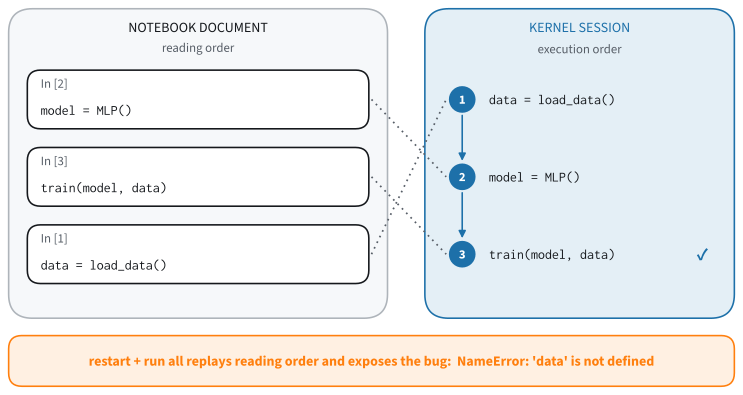
Figure 39.1.1 shows the classic failure. During an editing session you executed a data-loading cell first, then wrote a model-definition cell above it, and everything worked because the kernel already held data. The document now tells a story that never happened. A reader who runs the cells in the order shown, or you tomorrow after a restart, hits a NameError.
The execution counters (In [3], In [1], …) number the cell executions since the kernel started; they are historical clues, not a dependency graph. The following pair of cells demonstrates benign, document-ordered state: the second cell works only because the first ran.
-0.2638849576850524That dependency is fine, because it follows the reading order. A cell that depends on an assignment below it, or on a cell you have since deleted, is not. Keep cells small, keep function definitions separate from experiments, and pass data explicitly rather than mutating globals across many cells.
39.1.1.2 Restart and Run All
Restart kernel and run all cells discards the kernel’s accumulated state and replays the document from a blank slate, in reading order. It catches hidden kernel state and order dependencies before a notebook is shared. Run it before saving, sharing, or committing a notebook. The book’s build applies the same test: it executes every notebook from top to bottom in a fresh kernel, and the outputs on the website come from those runs.
39.1.2 Running the Book Locally
39.1.2.1 Setting Up
Numerical results and even APIs change between package versions, so the book pins its environments. The notebook archive for each framework, described in Installation, contains the notebooks, the d2l package, and uv lock files for a CPU and a GPU environment. From the extracted directory, create the environment once and launch JupyterLab in it:
uv venv --python 3.12
uv pip sync pylock.cpu.toml
uv run --no-sync jupyter lab
On Linux with an NVIDIA GPU, synchronize pylock.gpu.toml instead. The --no-sync option keeps uv from altering the environment that the lock selected. A clone of the GitHub repository builds its environments with make instead (as we will set up in Section 39.8).
The kernel selected inside a notebook must belong to the environment where the packages were installed. A Jupyter server can see many kernels; its own Python process does not determine which one executes your notebook.
39.1.2.2 A Quick Sanity Check
Before changing code, record a compact identity check:
import os
import platform
import sys

{
    "python": sys.executable.replace(os.path.expanduser("~"), "~"),
    "version": platform.python_version(),
    "working_directory": os.path.basename(os.getcwd()),
}
{'python': '~/d2l-neu/.venv-pytorch/bin/python',
'version': '3.12.3',
'working_directory': 'chapter_appendix-tools-for-deep-learning'}This catches two common setup mistakes in one cell: a kernel from the wrong environment (sys.executable points somewhere unexpected) and a notebook opened from a directory where relative data paths no longer resolve. The cell abbreviates the home directory to ~ and prints only the last component of the working directory, so that its saved output reveals no personal path.
39.1.3 Working in an Editor
39.1.3.1 JupyterLab
JupyterLab combines a file browser, notebook editor, terminals, a text editor, debugger support, and a view of running kernels. The essentials are stable even as the interface evolves:
- Run a cell with
Shift+Enter; use a terminal tab foruv, Git, and inspecting files. - Select the kernel by environment name, then verify
sys.executable. - Interrupt a long computation before restarting. Restarting releases Python state and, normally, the accelerator memory owned by that process.
- Use Restart Kernel and Run All Cells before saving a result for others.
- Inspect the Running panel and stop kernels you no longer use: closing a browser tab does not stop its kernel, and an orphaned kernel can hold gigabytes of GPU memory.
39.1.3.2 VS Code
Visual Studio Code edits and runs .ipynb files with kernel selection, a variable inspector, cell-level debugging, and notebook-aware diffs. Open the extracted directory as a folder, choose the interpreter of the environment created above, and select that interpreter as the notebook kernel.
When a notebook grows into a project, VS Code can navigate definitions, run tests, format code, and review Git diffs. Keep testable logic in .py modules and use the notebook for explanation and experiment records. This repository also includes a VS Code extension for the book’s authoring workflow (switching framework views, previewing slides, and syncing edits back to the source), described in Section 39.8.
39.1.3.3 Debugging and Timing
An exception ends the cell but not the kernel, which keeps the traceback along with every variable. Running %debug in the next cell therefore opens a debugger in the frame where the exception was raised. Use the notebook debugger when the kernel supports it, or move a small failing call into a module and debug it in a terminal. Resist broad try/except blocks that print “failed”: they discard the exception type and location that diagnosis needs. For quick measurements, IPython’s magics are built in:
values = np.arange(100_000, dtype=np.float64)
%timeit values @ values
9.77 μs ± 113 ns per loop (mean ± std. dev. of 7 runs, 100,000 loops each)One caveat when timing accelerators: GPU operations are asynchronous, so a host-side timer may measure only the dispatch of work, not its completion. Synchronize explicitly (or use the framework’s benchmarking utilities), warm up compiled kernels first, and record the shapes, precision, device, and library versions alongside the number.
39.1.4 Remote Machines
Your editor, the notebook server, the kernel, and the accelerator need not be on the same machine. A common setup runs JupyterLab next to the GPU while you edit from a laptop.
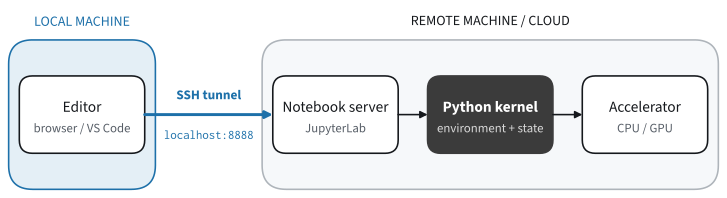
Bind the remote server to loopback and forward it over SSH:
# Remote machine
uv run --no-sync jupyter lab --no-browser --ip 127.0.0.1 --port 8888
# Local machine
ssh -N -L 8888:127.0.0.1:8888 myserverThen open the tokenized http://127.0.0.1:8888/... URL locally. Never bind an unauthenticated Jupyter server to all network interfaces: anyone who can reach the port can execute code as you. The SSH tunnel provides encryption and access control; Jupyter’s token remains a useful second boundary.
VS Code’s Remote SSH installs a small server-side component so the editor UI runs locally while terminals, extensions, files, and kernels all live on the remote machine. Confirm the status bar shows SSH before selecting the Python environment, since a local kernel cannot use the remote GPU. In either setup, treat remote compute as disposable: commit code and copy checkpoints to durable storage before it is rebooted, preempted, or deleted (Section 39.3).
Before sharing or committing a notebook, perform a final reproducibility and privacy check: restart and run all; check that setup does not rely on personal paths or unrecorded downloads; remove secrets and private data from outputs; keep the outputs that teach or verify something and delete noisy progress logs; and note the environment and hardware needed to interpret any measurement.
39.1.5 Summary
Notebooks interleave prose, code, and results while keeping expensive state in memory across experiments, so they reward active editing rather than passive reading. Because the saved document and the live kernel record state in different orders, restarting the kernel and running all cells from the top is the essential check that they agree. To keep local runs reproducible, launch JupyterLab inside the environment synchronized from the book’s uv lock files and verify the active kernel via sys.executable. JupyterLab brings notebooks, terminals, and kernel management into one browser workspace, while VS Code adds module navigation, testing, diffs, and remote development as a project grows. When working on a remote accelerator, connect through an SSH tunnel or VS Code Remote SSH rather than exposing an unauthenticated notebook server to the network.
39.1.6 Exercises
- [code] Out-of-order execution. Reproduce the failure of Figure 39.1.1 in a new notebook: run a cell that defines
data, insert a cell above it that usesdata, and run the new cell. Restart and run all then stops with aNameError.- Construct a pair of cells whose out-of-order execution changes a value instead of raising an error, for example a learning rate that a cell further down sets again before you rerun the training cell. What does restart and run all report for this notebook? Which of the two failures is more dangerous, and why?
- A saved notebook shows the execution counters \(1, 2, \ldots, n\) on its \(n\) code cells in document order. What does this guarantee about how its outputs were produced? Pimentel et al. (2019) distinguish three kinds of hidden state: a re-executed cell, a cell edited after it ran, and a removed cell. Which of them can such a notebook still contain? A kernel restart resets the counter to \(1\); take restarts into account.
- Another notebook shows the counters \(3, 8, 9\) on its three code cells. What do the gaps tell you about executions that the document no longer shows? Do they prove that the outputs depend on hidden state?
- Limits of a clean run. Restart and run all replays the document in a fresh kernel, but on the same machine. Consider five notebooks that pass this test on their author’s machine:
- a cell loads
features.npyif the file exists and otherwise computes it, the computing branch contains a bug, andfeatures.npyis not in the repository; - a package was installed from a cell that has since been deleted;
- a cell reads
/home/alice/data/train.csv; - a cell reads an environment variable that is set in the shell that launched JupyterLab;
- a paragraph quotes an accuracy that a cell computes with an unseeded random generator.
- For each notebook, describe what a reader who downloads it experiences.
- Suppose the notebook is instead executed top to bottom on a fresh machine, in a new environment built from the lock file, from a fresh clone of the repository. Which of the five failures does this catch? For the failures that remain, name a check that catches them.
- a cell loads
- [code] Use-before-define detector. ● Restart and run all finds an out-of-order dependency only by executing the notebook. A static check reads the document without running it.
- Write a function that reads a
.ipynbfile and reports every name that a code cell reads, that no earlier cell and no built-in binds, but that a later cell binds. Convert magics such as%timeitinto Python withIPython.core.inputtransformer2.TransformerManagerbefore you parse a cell withast. Test the function on the notebook of exercise 1. - The body of a function runs when the function is called, not when it is defined. Construct a notebook on which your detector raises a false alarm for this reason, and one on which it misses a real failure. Fix the false alarm.
- Add two warnings: a name that a cell binds again after an earlier cell has read it, and a cell that reads and rebinds the same name (such as
pixels = pixels / 255). Which failure of exercise 1a and of repeated in-place cell execution does each warning target? Can either warning tell a harmless case from a harmful one?
- Write a function that reads a
- [code] Worker processes. ● Python’s
multiprocessingstarts workers by one of three methods:forkcopies the parent process,spawnstarts each worker in a fresh interpreter, andforkserverforks each worker from a server process that was itself started fresh. Under every method, a pool sends each task, including the function to call, to its workers withpickle. Data loaders with worker processes rely on the same mechanism.- Define
square(i)returningi * iin a notebook cell. In another cell, runp.map(square, range(4))insidewith multiprocessing.get_context(method).Pool(2) as p:for every method that your system offers. If a cell does not return, interrupt the kernel. What happens for each method, and where do the error messages appear? - Explain the behavior from what
picklestores for a function and from the module in which a notebook defines its functions. - Python 3.12, which the book’s environments use, starts workers with
forkon Linux and withspawnon macOS and Windows. Python 3.14 changed the default on Linux toforkserver. Restructure the notebook so that the pool works under every start method.
- Define
- [code] Asynchronous accelerator timing. ● Consider the product of two \(8192 \times 8192\) matrices in a 16-bit format on a GPU: bf16 where the GPU supports it, and fp16 on the T4 and P100 of the free Colab and Kaggle tiers (as we will set up in Section 39.2), which have no bf16 units. Use one of these free GPUs if your machine has none.
- Compute the time the product needs at the dense throughput that your GPU’s datasheet lists for this format, or, for an RTX 4090, at its entry of Table 13.2.1.
- Time one call with
time.perf_counter(), once with and once without a device synchronization before the timer stops. In both measurements, synchronize before the timer starts and exclude the first call. Which measurement is consistent with (a)? What throughput would the other imply? - Time the first call on its own and explain why it differs from later calls.
- Time the unsynchronized product with
%timeit, which runs it many times in a row. Where does the result fall relative to the two measurements of (b), and why?
- A shared GPU server. ● Several users of one remote server each start JupyterLab with
uv run --no-sync jupyter lab --no-browser --ip 127.0.0.1 --port 8888and connect from their laptops withssh -N -L 8888:127.0.0.1:8888 myserver.- Who can connect to a server that listens on
127.0.0.1of that machine? What protects your kernel from them? Find where your running server records its token on disk, and which users can read that file. - Your server holds port 8888 when a second user runs the same command. Jupyter then tries up to 50 other ports nearby by default. Where does the second user’s tunnel lead, and what does that user see in the browser? How does the second user find the port on which their own server listens?
- On your laptop, a local JupyterLab that you use already listens on port 8888 when you open the tunnel. By default
sshonly warns when it cannot bind the local port, and keeps running. What does the browser athttp://127.0.0.1:8888reach? The cell#interactive-development-identityprints~for the home directory on the laptop and on the server alike. Which check tells the two machines apart? - Write a connection procedure that turns each collision of (b) and (c) into an error you notice.
- Who can connect to a server that listens on